Before buying a dual-HDMI dock, check what your laptop can display
Key Takeaway
Two HDMI ports do not guarantee two independent screens. OWC's new Thunderbolt 5 dock, advertised to ship in November, shows why both the laptop and dock display-support tables matter more than a photo of the ports.
What the November announcement establishes
OWC announced its Thunderbolt 5 Dock with Dual HDMI on September 8, 2026. It combines two built-in HDMI 2.1 ports with laptop charging, wired networking, storage connections and card readers. When checked on November 4, the official product page still showed a November shipping notice and a notification signup.
That establishes the manufacturer's announced product and shipping window. It does not establish that a particular retailer has started dispatching orders, or that a Korean launch has been confirmed. Check delivery and warranty terms before treating it as a purchase option.
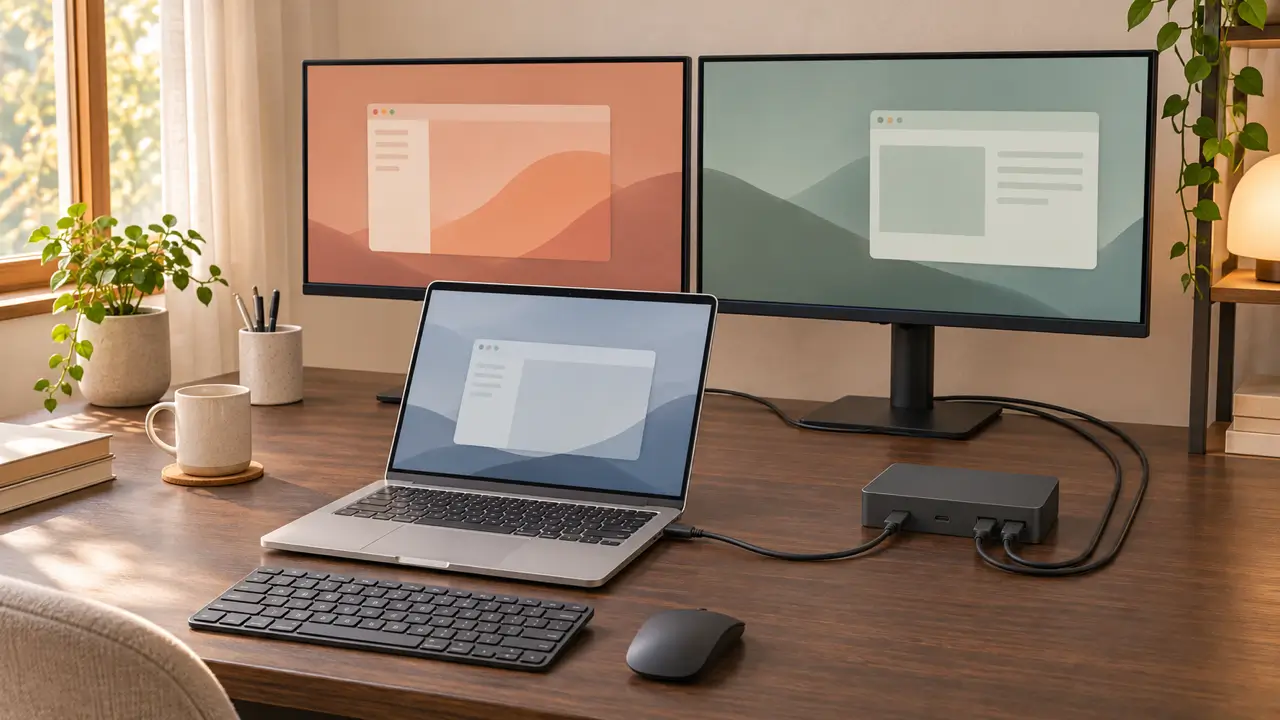
The following sections explain how to read the official support tables for your own setup. The cover is a conceptual home-office illustration with a generic dock rather than a photograph of the OWC product.
Start with the exact laptop model and port
A product-family name can hide differences between chips and model years. Record the precise model, chip or CPU, and operating-system version first. Then use the laptop documentation to identify the port you will connect: Thunderbolt 5, Thunderbolt 4, USB4, or USB-C with video-output support.
The shape of a USB-C connector does not establish its display capabilities. OWC separates Thunderbolt 5, 4 and 3, USB4, and USB-C DisplayPort Alt Mode hosts in its table. Being able to insert a cable and being able to use the same display configuration are separate questions.
For a MacBook Pro, begin with Apple's model-specific external-display limits and supported resolution and refresh-rate combinations. Apple explains that a supported hub or daisy chain does not increase the Mac's maximum external-display count. A dock consolidates connections; it should not be assumed to remove the computer's limits.
Which host does the maximum specification describe?
The following summarizes selected two-display entries in OWC's product table. Actual support depends on the host specifications, GPU, operating system, display configuration and DSC support. DSC is display-stream compression and is one of the conditions to check when reading maximum resolution and refresh-rate claims.
| Laptop-side connection | Example of OWC's stated two-display support | What still needs checking |
|---|---|---|
| Thunderbolt 5 | Up to two 4K 240Hz or 8K 60Hz displays | The laptop's output limits and conditions such as DSC |
| Thunderbolt 4 | Up to two 4K 60Hz displays | Whether the laptop supports those two displays simultaneously |
| USB4 | Up to two 4K 60Hz displays on supported hosts | The precise host, operating system and display combination |
| USB-C DisplayPort Alt Mode | Up to two 4K 60Hz displays on supported hosts | MST and operating-system support for two extended displays |
Do not apply the Thunderbolt 5 maximum to the Thunderbolt 4 row merely because the dock is the same. Equally, many desks do not need the highest number on the page. Write down the required resolution and refresh rate for each existing monitor first.
This is a summary of manufacturer support information, not measurements across every laptop. Keep single-display and simultaneous two-display limits separate.
The easily missed macOS condition: MST
An extended desktop places different workspaces on the two monitors. Mirroring repeats the same screen. A photograph showing two HDMI ports does not establish which arrangement your computer will support.
OWC states that two extended displays on a USB-C DisplayPort Alt Mode host require MST support, and that macOS does not support MST extended displays. This should not be broadened into a claim that every Thunderbolt connection on a Mac is limited to one external display. Read the note for the connection type you will actually use.
For example, someone connecting two 4K 60Hz displays to a Thunderbolt 4 MacBook Pro should first check that specific model's simultaneous-display support in Apple's documentation, then compare the dock's Thunderbolt 4 table and cable arrangement. The MST note in the ordinary USB-C row alone cannot settle that setup.
Comparing the two tables may still leave the exact Mac-and-dock combination unresolved. Before ordering, give OWC the precise Mac model, macOS version, host port and monitor models, and confirm independent extended desktops at the desired resolutions and refresh rates.
Windows users should also check the exact port rather than its connector shape. Find DisplayPort Alt Mode and multiple-display support in the laptop documentation, then compare the dock's operating-system conditions.
Charging ratings and port counts answer different questions
OWC's up-to-140W rating refers to power delivered to the laptop. It is separate from the front USB-C port's up-to-30W mobile-device charging specification. The wording does not establish the maximum negotiated charging power on Thunderbolt 4, USB4 or USB-C hosts; confirm that for the particular laptop with the manufacturer. Do not add the two figures together or assume that all USB ports provide the same power.
Check the laptop's USB-C charging support and required power against the dock's supply conditions. If you intend to remove the original laptop charger, consult the laptop maker's instructions for that port rather than relying only on the old adapter's rating. The separate 65W charger comparison explains why individual charging-port ratings also matter.
OWC lists a certified 1m Thunderbolt 5 cable and an external power supply among the included items. Measure the actual route to your laptop if the dock will sit below the desk. If the cable is too short, check the necessary connection and charging specifications before substituting another USB-C cable based on its appearance.
Port placement also matters. Frequently removed cards and phone cables need to be reachable; permanent display and network cables need suitable routing. OWC supports horizontal and vertical placement, but that alone does not establish a good fit for your desk or cable bends.
Fill in this checklist before opening the order page
| Item | What to record | Where to compare it |
|---|---|---|
| Laptop | Exact model, chip and operating system | Laptop specifications and external-display support |
| Host port | The actual port's connection standard | Port and video-output documentation |
| Monitors | Each model and required resolution and refresh rate | Input-specific monitor support tables |
| Desktop layout | Extended screens or mirroring | The dock's host row and MST notes |
| Power | Laptop charging requirements and dock power supply | Laptop and dock charging documentation |
| Installation | Cable route, dock position and reachable ports | Included accessories, dimensions and placement guidance |
| Order | Exact product, shipping status, delivery and warranty | The actual seller's listing and terms |
If a row is still unknown, resolve it before choosing the dock with the largest advertised number. The useful starting point is a supported combination of screens and peripherals on the laptop you already have.
Check the setup after connecting it
Start with the included cable, power supply and manufacturer's installation instructions. Connect one external display and check the required resolution and refresh rate before adding the second. Even when both light up, verify whether the operating system is extending or mirroring the desktop.
If the result differs from expectations, revisit the laptop model's support table, host port, cable and the dock's matching host row. Do not assume that installing software will make an unsupported configuration work; use the manufacturers' support documentation and assistance.
Sources are OWC's September 8, 2026 announcement and official product page, and Apple's support article, checked on November 4, 2026. Actual dispatch dates, Korean pricing and retailer stock were not established for this guide.
Frequently Asked Questions
Do two HDMI ports guarantee two separate extended displays?
No. The laptop's external-display limit, port capabilities, operating system and the dock's host-specific support table must all match the intended setup.
Will every MacBook with USB-C connect in the same way?
No. Thunderbolt and USB-C DisplayPort Alt Mode are different connection cases. OWC says dual extended displays on a USB-C host require MST support, and macOS does not support MST extended displays.
Will a 140W dock always charge a laptop at 140W?
140W is this dock's maximum host power-delivery specification. Check the laptop's USB-C charging support, power requirements and connection conditions separately.
Does November shipping mean it is immediately available in Korea?
The manufacturer states November shipping. Actual retailer stock, delivery to Korea, local availability and pricing require separate confirmation.